Updates

Follow new updates and improvements to Discount Magic.

Attribute discounts to campaigns, partners, channels and departments
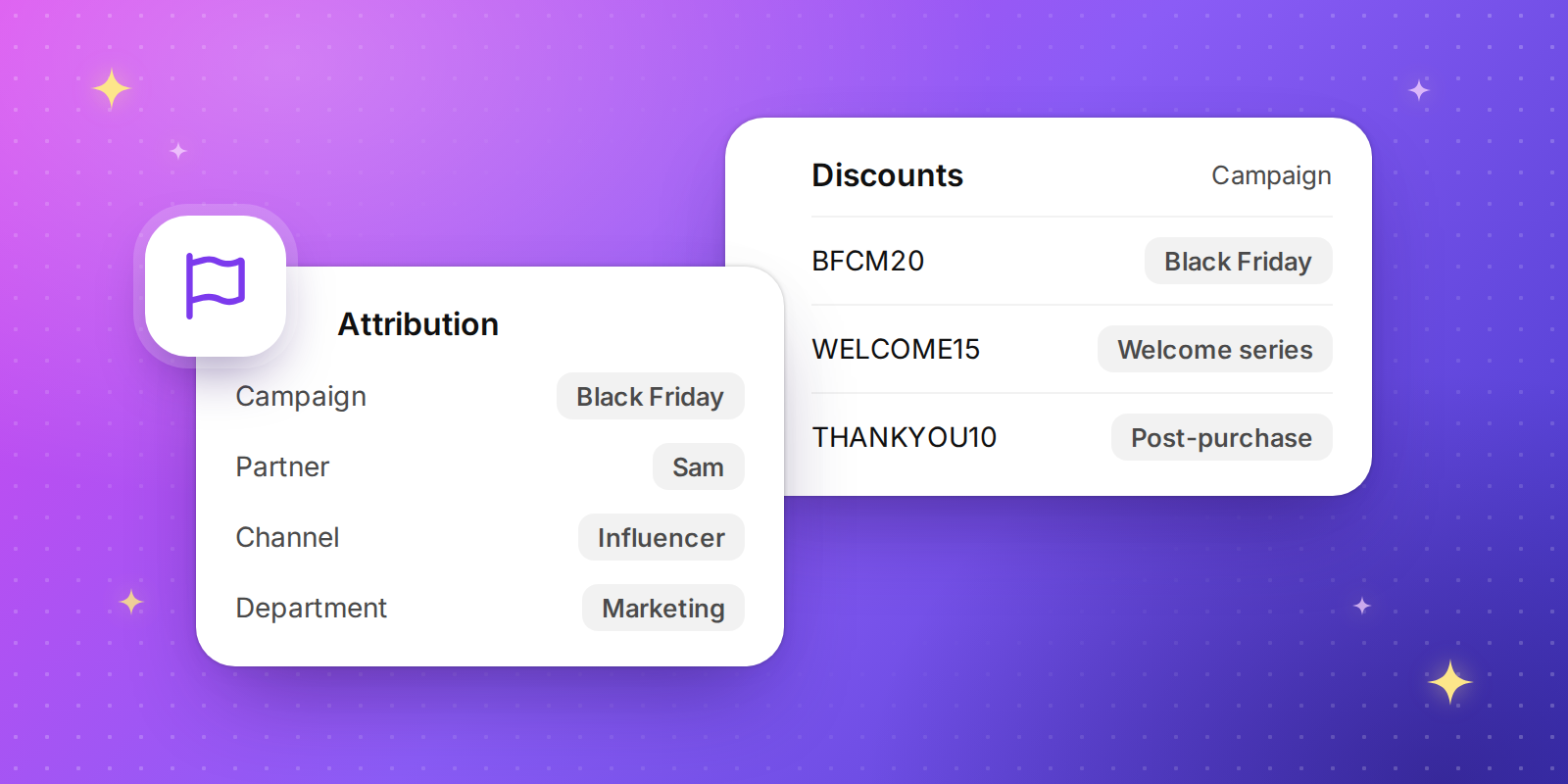
Organise your discounts and codes around the way your business runs: the campaign each one is part of, the partner who gives it out, the channel customers find it through and the department that looks after it.

Four ways to organise your discounts

Campaigns

The marketing event a discount is part of, such as a summer sale, a product launch or an always-on welcome offer. For example, group every Black Friday discount under "Black Friday 2026".

Partners

The influencer, affiliate or business that gives out or promotes your codes. For example, give each influencer their own batch of codes and see the revenue each one drives.

Channels

Where customers see or receive a code, such as an email campaign, a text message, a social post or a packaging insert. For example, compare codes printed on packaging inserts with codes sent by email.

Departments

The team in your business that looks after a discount. For example, file goodwill codes under Customer service, so the team can find every code it has issued.

Attribute discounts and batches

  • On a discount. In the Attribution section on the right of a discount's page, add it to a Campaign, Partner, Channel and Department. Type a new name to create one on the spot.
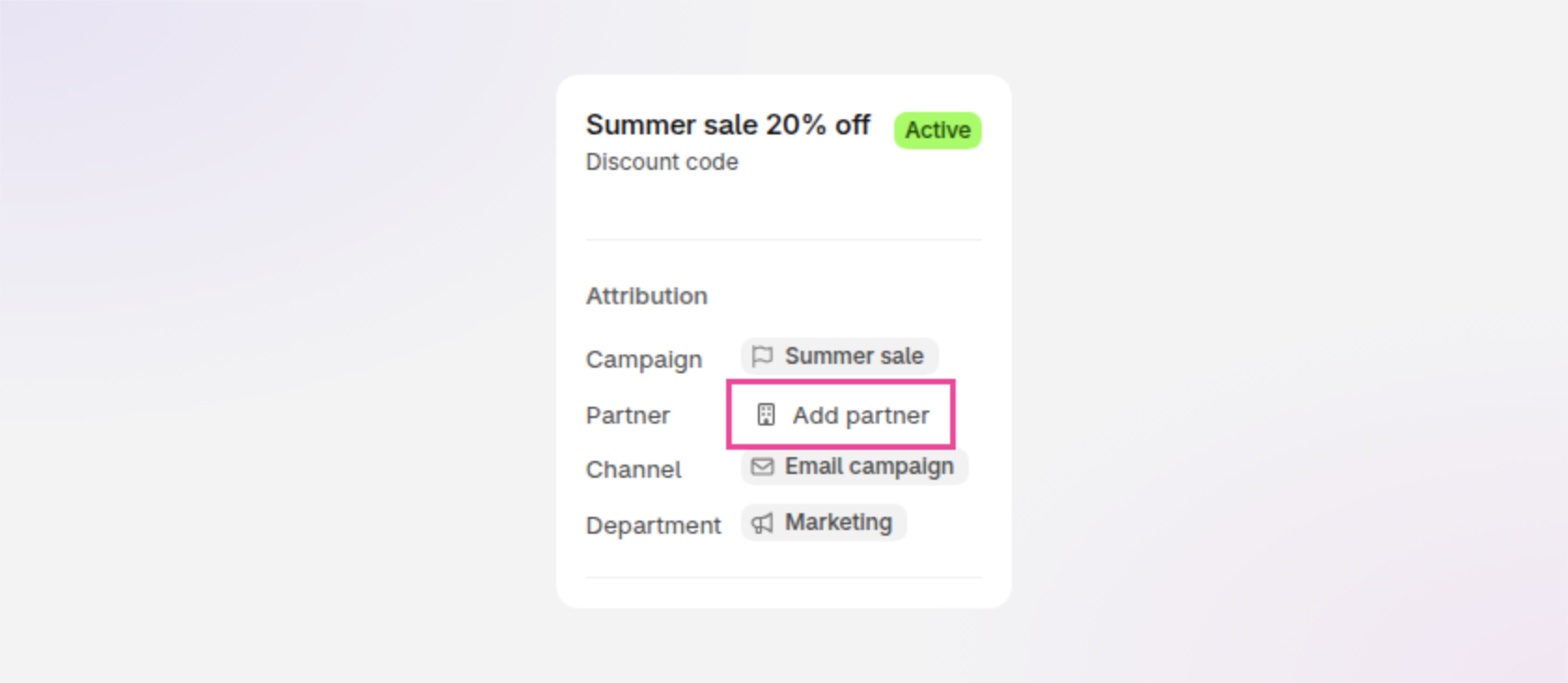
    The Attribution section on a discount's page in Discount Magic, under the discount Summer sale 20% off: Campaign Summer sale, Add partner, Channel Email campaign and Department Marketing, with Add partner outlined.
  • On a batch of codes. Give a batch its own campaign, partner, channel and department when you create it, or later on the batch's page.
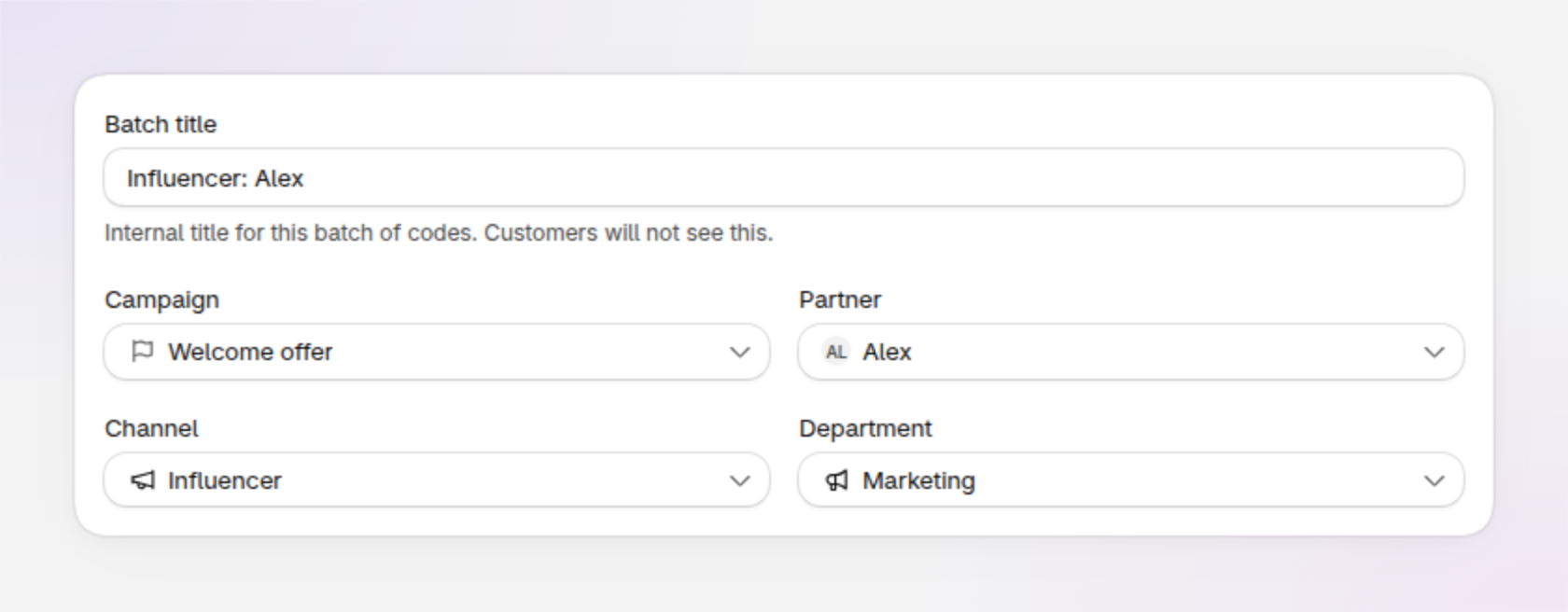
    The top of Discount Magic's batch designer: Batch title Influencer: Alex, then Campaign Welcome offer, Partner Alex, Channel Influencer and Department Marketing.
  • Filter by attribution. Filter the discounts list, or a discount's batches, by campaign, partner, channel or department.
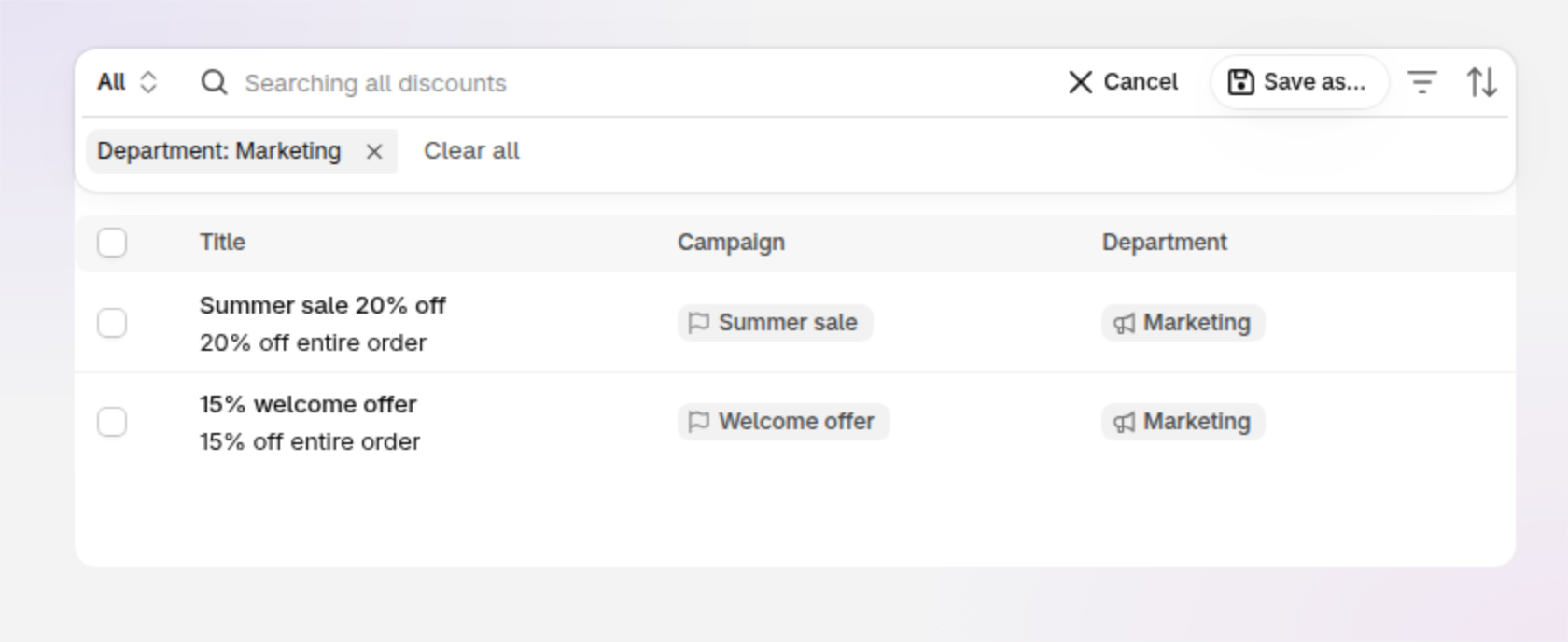
    The discounts list in Discount Magic filtered by Department, with a Department: Marketing filter above the table and two discounts, Summer sale 20% off in campaign Summer sale and 15% welcome offer in campaign Welcome offer, both in department Marketing.

Attribute a discount, its batches, or both

Attribution works at two levels: on the discount itself, and on each batch of codes inside it.

Add attribution to discounts to keep them organised, and to each batch within a discount to help filter and group codes. Both are optional: attribute just the discount, just its batches, both or neither.

When creating a new batch, it will default to the same campaign, partner, channel and department as its parent discount, which you can decide to keep, change or clear.

Easy to manage and update

  • Set attribution directly from discount lists. The discounts and batches lists have new columns for each type of attribution. Click within the list to set or update it.
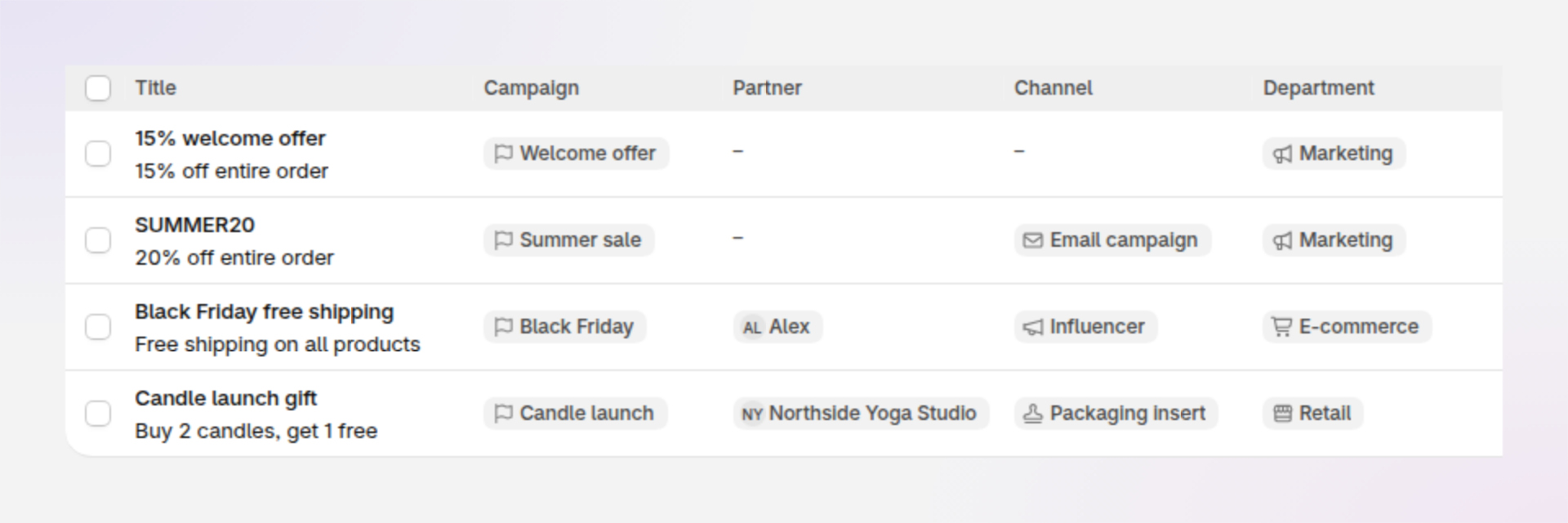
    The discounts list in Discount Magic with Campaign, Partner, Channel and Department columns, showing four discounts attributed to campaigns such as Welcome offer and Black Friday, partners Alex and Northside Yoga Studio, channels Email campaign, Influencer and Packaging insert, and departments Marketing, E-commerce and Retail.
  • Bulk updates. Select multiple discounts or batches and attribute them all in one go.
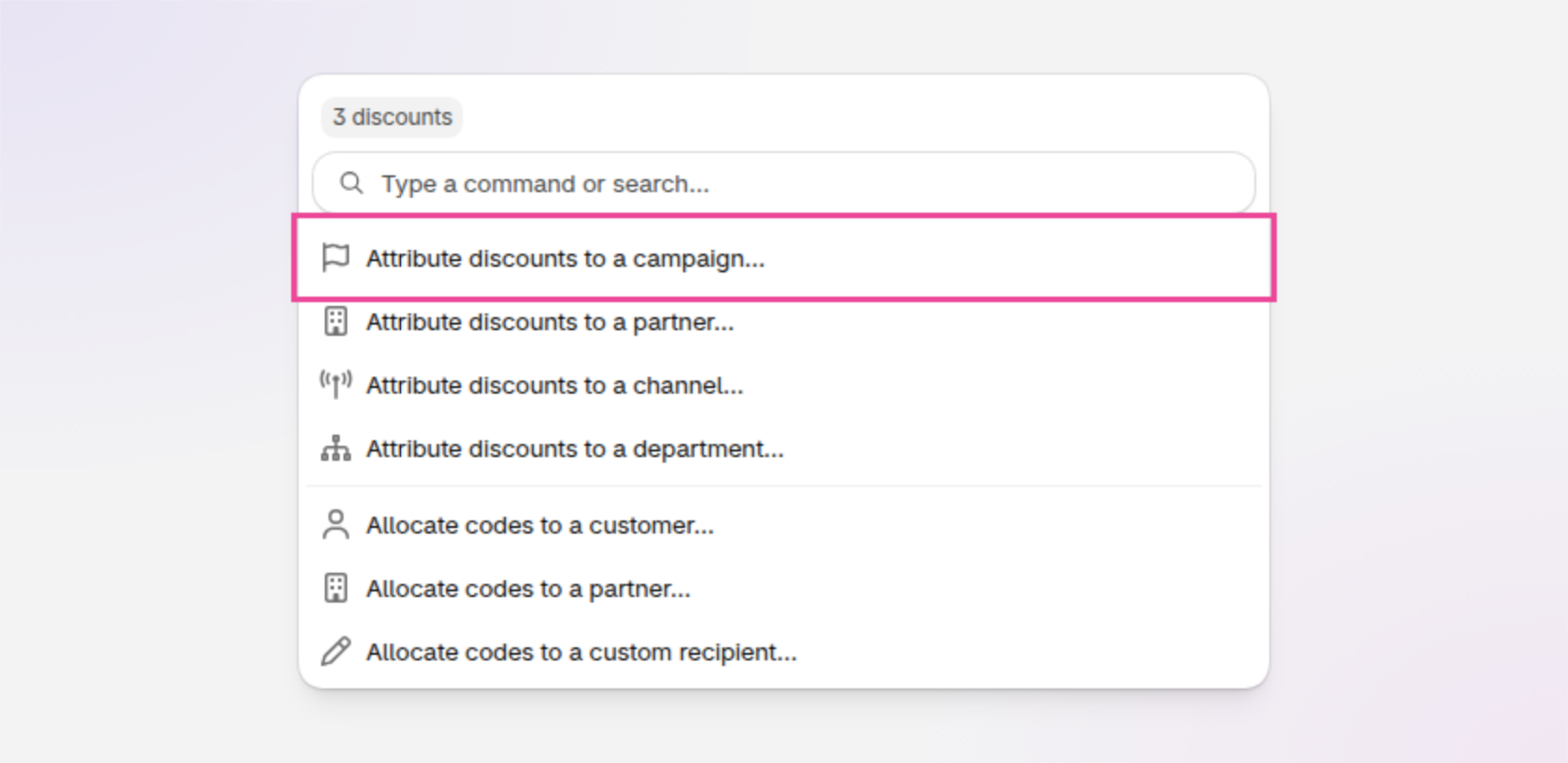
    The Edit window for 3 selected discounts in Discount Magic, listing Attribute discounts to a campaign, to a partner, to a channel and to a department, then the Allocate codes options.
  • See where each is used. Hover over a campaign, partner, channel or department to see how many discounts and batches use it, and click the discount or batches count to see a filtered list of them.

    The Marketing department chip on the discounts list with its hover card open, reading Department this discount is attributed to, Marketing, 12 discounts and 8 batches, with a Department settings link.
  • Every change recorded. As with other discount changes, updates to attribution appear in the discount's or batch's timeline.
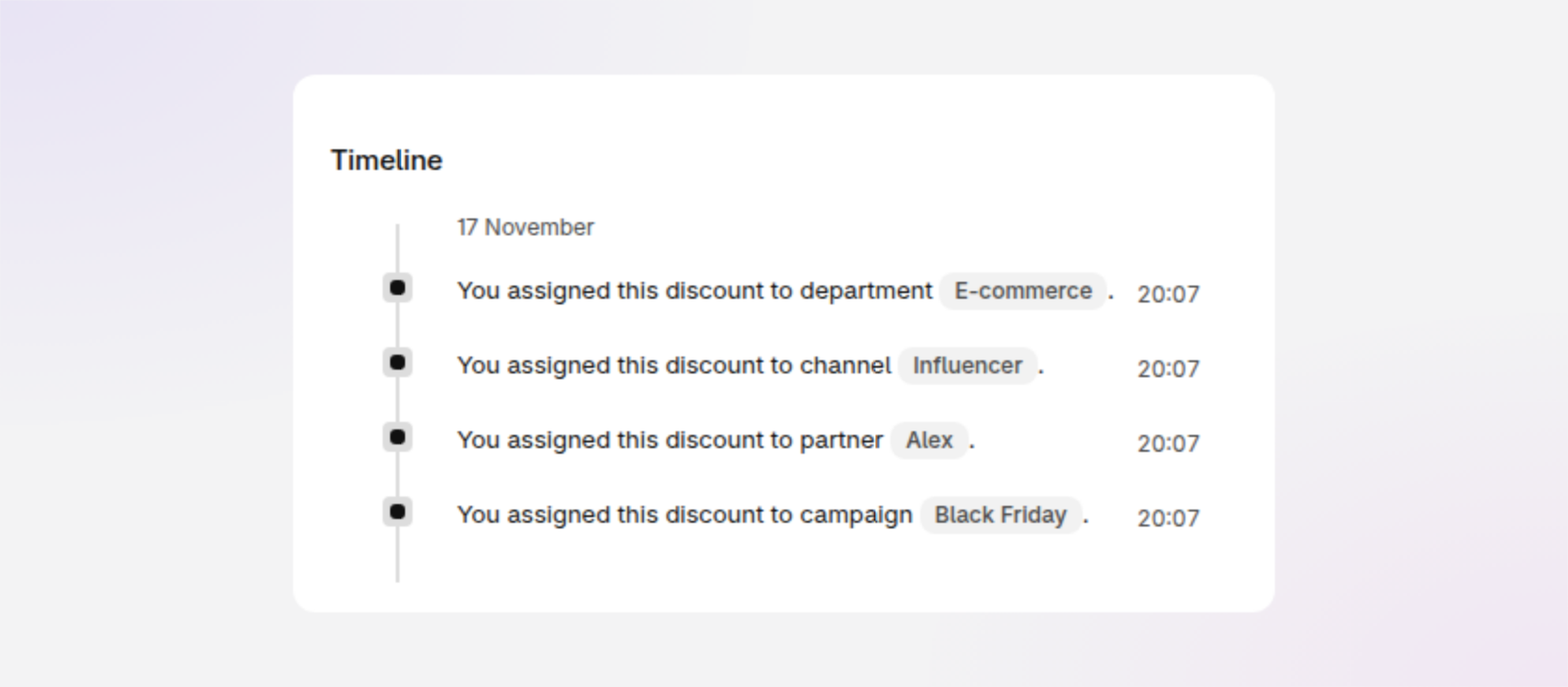
    A discount's Timeline in Discount Magic with four entries: You assigned this discount to department E-commerce, to channel Influencer, to partner Alex and to campaign Black Friday.

Ready-made examples you can shape

When you install Discount Magic, we add common channels and departments as defaults for you to customise. Manage them, and your campaigns and partners, under Settings: add your own, sort them into groups, drag to reorder and hide the ones you don't use.

Read more in our help guides: Discount attribution and Discount batch attribution.


Available for stores on the Pro plan at no extra cost.
NewPro Plan

A fresh look for the new Shopify admin

Shopify has refreshed the look of its admin, and Discount Magic has been redesigned to match. The app continues to feel like a natural part of Shopify, so managing your discounts is as familiar as the rest of your admin.

What's changed

  • Clean white pages, Shopify's own typeface and clearer headings

  • Rounded buttons, cards and fields that match the new admin

  • Softer status colours on badges and banners that are easier to scan

  • Refreshed tables, menus, pop-ups, date pickers and tooltips

Nothing new to learn

Everything is right where you left it. Your discounts, batches and settings work exactly as before. They just look better.

Improved

Track every Shopify discount change in one activity feed

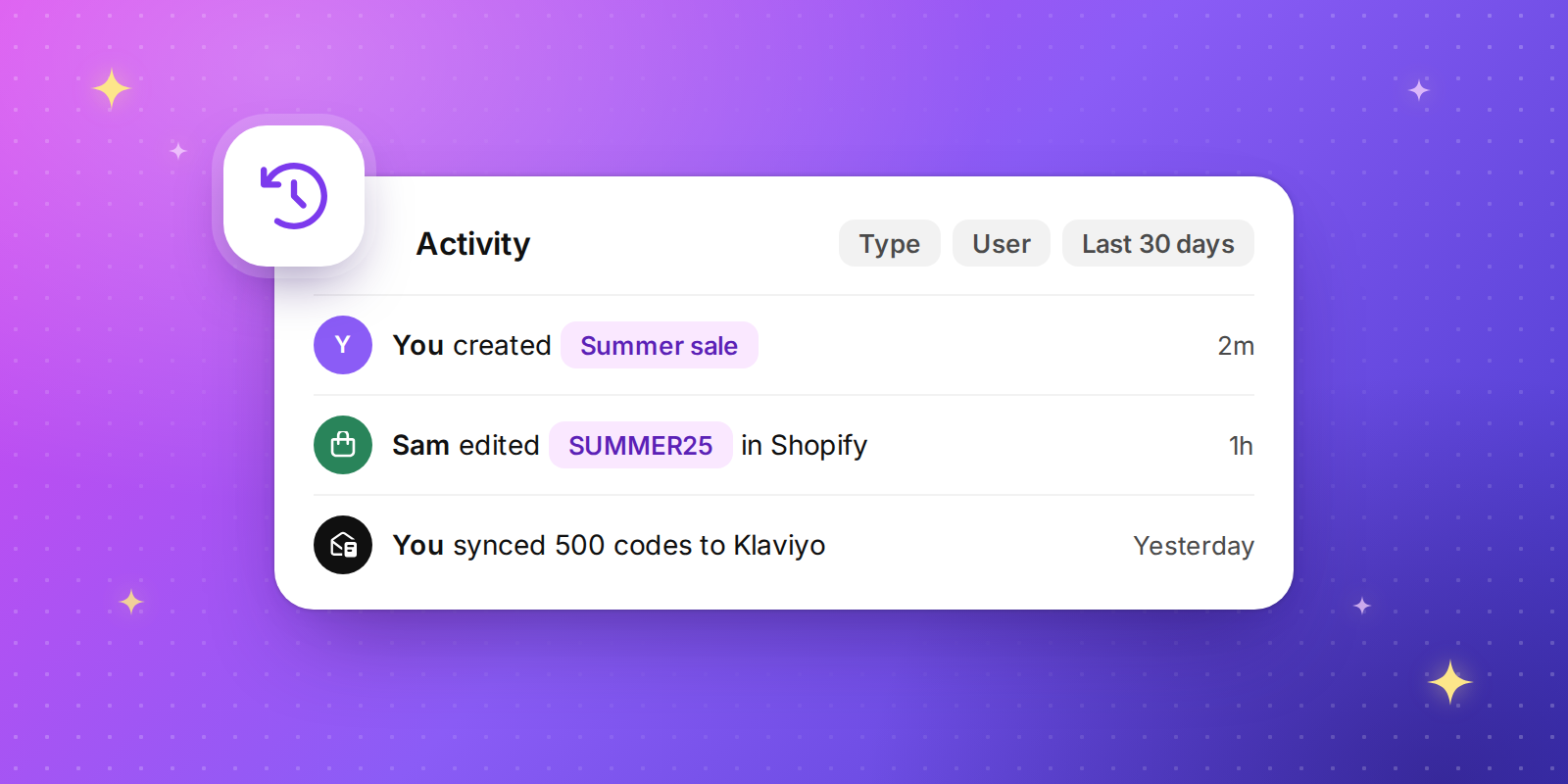
Know exactly who changed what, and when. The new Activity page brings every change to your discounts and code batches into one timeline, including edits made in the Shopify admin and by other apps.

Everything in one place

  • Discounts created, edited, activated, deactivated, deleted and restored

  • Edits and deletions made directly in Shopify

  • Code batches created, topped up, renamed, exported and deleted

  • Codes synced to and removed from Klaviyo

Each entry shows who made the change, whether that's you, someone on your team, Shopify or another app, and links straight to the discount or batch. Expand an edit to see exactly which fields changed.

Up to a year of history from day one

When you install Discount Magic, we bring in Shopify's own record of changes to your discounts. Your timeline starts with up to a year of history, which is as far back as Shopify keeps it.

Find what you need quickly

Filter by type of change, by who made it or by date, from today back to the last 90 days or any range you choose. Every discount and batch also has its own timeline on its page, so its history is always one scroll away. You'll find the full feed under Activity in the app menu.

New

Earlier updates